

Step 1 — Choose your plan
The first screen shows what PopUp does and asks you to choose a plan.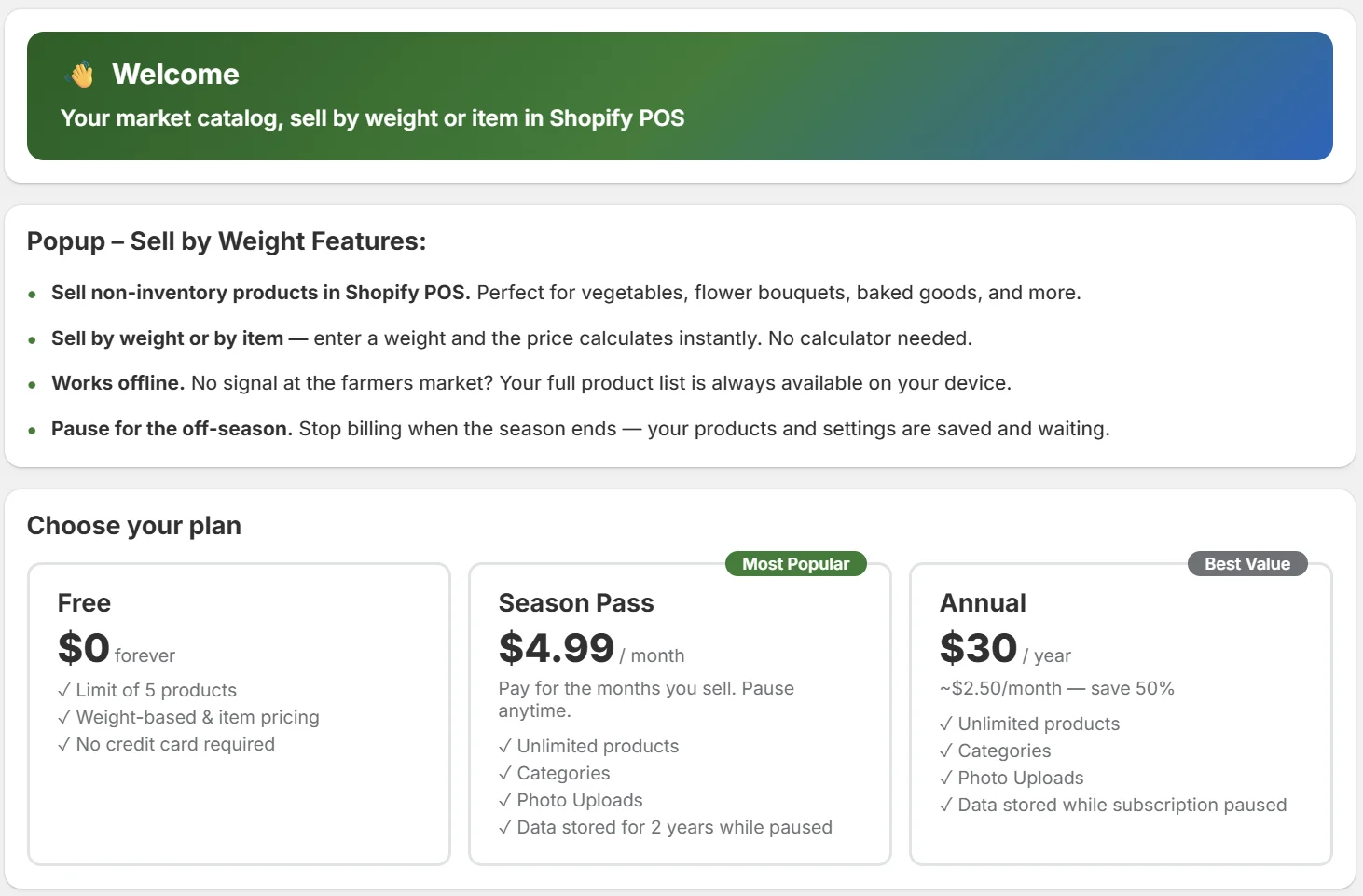
Select a plan card and tap Save & Continue. If you choose Season Pass or Annual, Shopify will ask you to approve the charge before continuing.
Step 2 — How it works
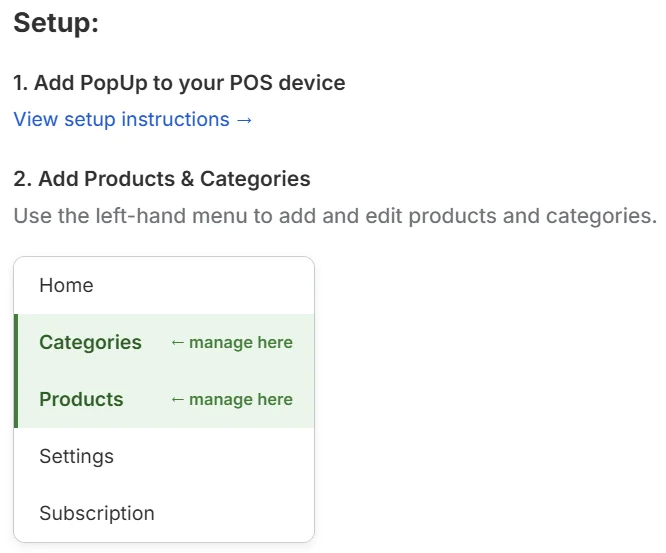
This screen gives you a quick overview of the two parts of PopUp.Setup (done in Shopify Admin)
- Add the PopUp tile to your Shopify POS home screen — see Installing
- Add your products and categories using the left-hand menu in the PopUp Admin
At market (done in Shopify POS on your phone)

- Open PopUp — tap the PopUp tile on your Shopify POS home screen
- Select a product and weigh it — enter the weight and PopUp calculates the price
- Add to cart and check out — the item is added to the Shopify POS cart
Step 3 — Add your first product
Choose how you want to build your catalog: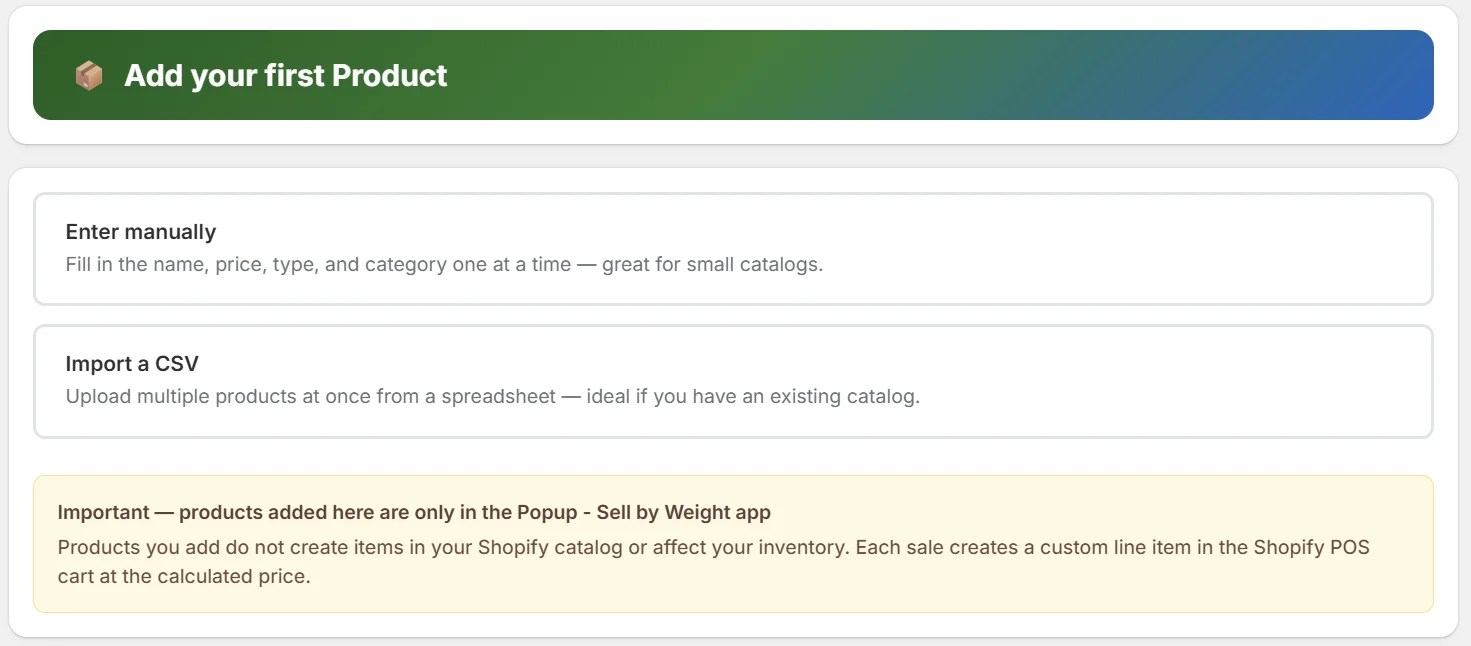
Products you add in PopUp are separate from your Shopify product catalog. They don’t affect your Shopify inventory. Each sale creates a custom line item in the Shopify POS cart at the calculated price.
Next steps
Adding products
Add weight and fixed-price products to your catalog
Adding categories
Organize products into groups for faster browsing