> ## Documentation Index
> Fetch the complete documentation index at: https://popup.apps.madvalley.com/docs/llms.txt
> Use this file to discover all available pages before exploring further.
# Installing
> Add PopUp to your Shopify store and POS setup.
## 1. Install Shopify POS on your phone
PopUp runs inside the Shopify POS app. If you don't have it yet:
1. Open the **App Store** (iPhone) or **Google Play Store** (Android)
2. Select the official app by Shopify Inc.
3. Install it and log in with your Shopify account
## 2. Install PopUp from the Shopify App Store
1. Go to the [PopUp: Sell by Weight listing](https://apps.shopify.com/popup-sell-by-weight) in the Shopify App Store
2. Select **Add app**
3. Review the permissions and select **Install**
PopUp is now connected to your Shopify store.
## 3. Add the PopUp tile to your POS home screen
PopUp appears as a tile on your Shopify POS home screen. You need to add it once before your first market day.
1. In Shopify Admin, select **Point of Sale** in the left navigation
2. Select **Settings**
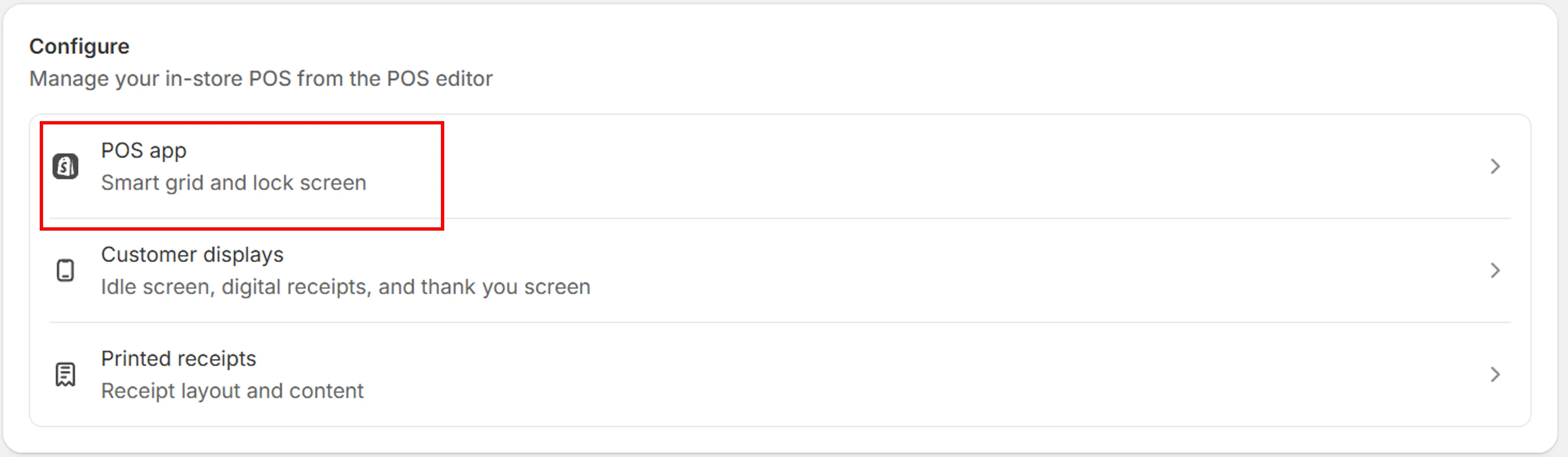
3. Under **Configure**, select **POS app**
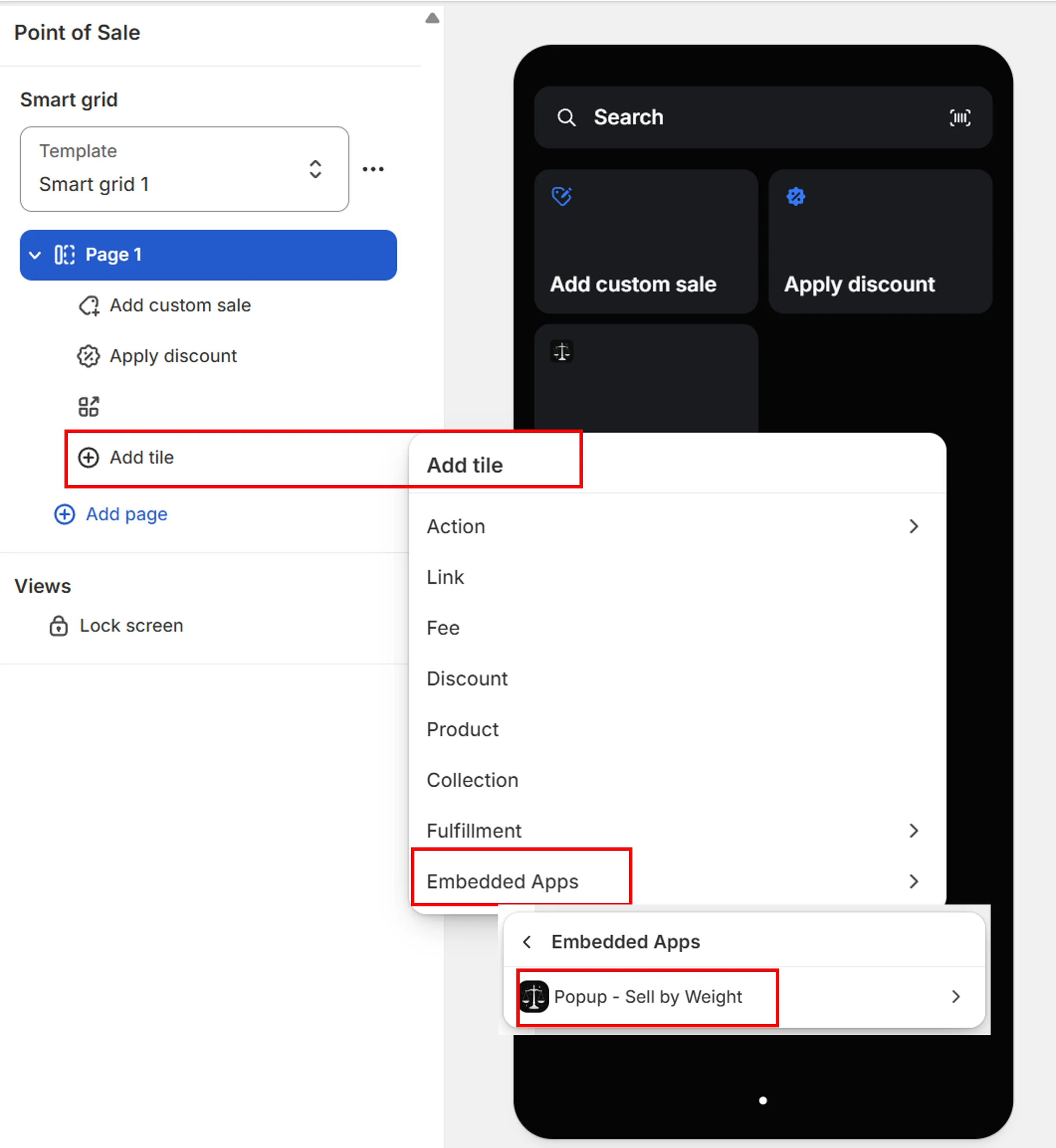
 4. Select the page where you want the PopUp tile to appear
5. Select **+ Add tile**
6. Under **Embedded apps**, select **PopUp - Sell by Weight**
4. Select the page where you want the PopUp tile to appear
5. Select **+ Add tile**
6. Under **Embedded apps**, select **PopUp - Sell by Weight**
 7. Select **Save**
The PopUp tile will now appear on your POS home screen.
## Next steps
Free, Season Pass, or Annual
Add products and categories
7. Select **Save**
The PopUp tile will now appear on your POS home screen.
## Next steps
Free, Season Pass, or Annual
Add products and categories